Voice Notes to Notion: The Fastest iPhone Workflow in 2026 (Including Database Routing)
If your second brain lives in Notion, you've probably had this experience: an idea hits while you're walking, in a meeting, between calls, or three minutes before your kids wake up. You think, "I should put this in Notion." You pull out your phone. You open Notion. You watch the app load. You navigate to the right database. You tap into a new row. You stare at the keyboard. The idea is already gone.
I've watched this loop play out hundreds of times, with founders, consultants, sales reps, real estate agents, designers, and second-brain enthusiasts. Notion is the best long-form thinking tool for most knowledge work. It is the worst capture tool for fleeting thoughts. Those two truths sit together uncomfortably.
This article is about closing that gap. There's a way to get voice notes into Notion in one tap, formatted however you want them, routed to a specific page or a specific database row, without ever opening the Notion app. The setup takes about five minutes. After that, capture is one tap and the entry appears in Notion exactly where you configured it to land.
Here's the workflow, and why it matters for Notion users specifically.
Why Notion on mobile is hard for capture
Notion was designed as a thinking environment, not a capture tool. That's a feature on desktop and a bug on iPhone.
The three friction points stack:
- Load time. Even with a fast device and good connection, Notion Mobile takes a beat to spin up after a cold launch. By that beat, your idea is competing with whatever was already in your head.
- Navigation. To put something in the right place, you have to find the right place. A "captures" page, a project database, today's daily note. Three taps minimum, usually more.
- Input. Typing on a phone keyboard is slow. Notion's block-based editor isn't tuned for fast text input the way a basic notes app is. The block creation, the slash menu, the formatting choices, all take small bits of attention you don't have when the idea is fleeting.
None of these are flaws in Notion. They're consequences of Notion being a thinking tool. The mismatch is real, and most Notion power users have settled into one of three patterns to work around it.
The three patterns Notion users settle into
If you're a regular Notion user, you've probably tried at least one of these.
Type into Notion directly
Open Notion, navigate to the right place, type. Pure but slow. By the time you're at the keyboard, the fleeting idea is already evaporating.
Capture in Apple Notes, migrate later
Fast capture, but you end up with two knowledge systems: organized Notion plus a graveyard of unprocessed fragments. Weekly review postpones until it doesn't happen.
Voice Memo + DIY automation
Shortcuts, Zapier, or Make piping voice memos into Notion via the API. Works until iOS updates, your network drops, the Notion auth rotates, or your DB schema changes.
1. Type into Notion directly and accept the friction
The minimalist option. You open Notion, navigate to the right place, type. You accept that some ideas will be lost to load time and that captures will read more like fragments than fully formed thoughts. The advantage is purity: everything is already in Notion, no extra tools to maintain.
For deliberate capture (sitting down for fifteen minutes to brain-dump into a project page), this works fine. For fleeting capture (the idea that surfaces between two meetings), it doesn't, and most Notion users quietly stop trying.
2. Type into Apple Notes or a notes app and migrate later
The "I'll process it Friday" approach. You capture into whatever notes app is fastest to open (often Apple Notes or Google Keep), with the intention of moving the good captures into Notion during your weekly review.
This works for about three weeks. Then the inbox builds up, processing gets postponed, and you have two separate knowledge systems: one in Notion that's organized, and one in your notes app that's a graveyard of fragments. The fragmented inbox eventually gets ignored entirely, which means you didn't actually capture anything; you just delayed losing it.
3. Voice memo plus DIY automation
The committed Notion power user's setup. You record into Apple Voice Memos (which now transcribes natively), then build an automation, usually with Apple Shortcuts, sometimes with Zapier or Make, to pipe the transcript into a Notion database via the Notion API.
This is the most respected solution because it requires the most maintenance. It also breaks the most: iOS updates change Shortcut behavior, the Notion API rotates auth tokens, the database schema you wrote the automation against gets renamed, and now your capture flow needs an afternoon of debugging. It also breaks the moment you have a lapse in network connection or you're offline. The capture you made on the train or in a basement coffee shop gets queued, fails silently, or just disappears depending on which step in the chain ran first. The DIY automation works until it doesn't, and when it doesn't, you go back to typing.
Across these three patterns, the common thread is: each one solves part of the problem and leaves the rest. The capture is fast OR it lands in Notion OR it's formatted, but rarely all three at once.
That's where the voice-to-action approach changes the calculus.
The voice-to-action approach: get the thought out of your head, fast
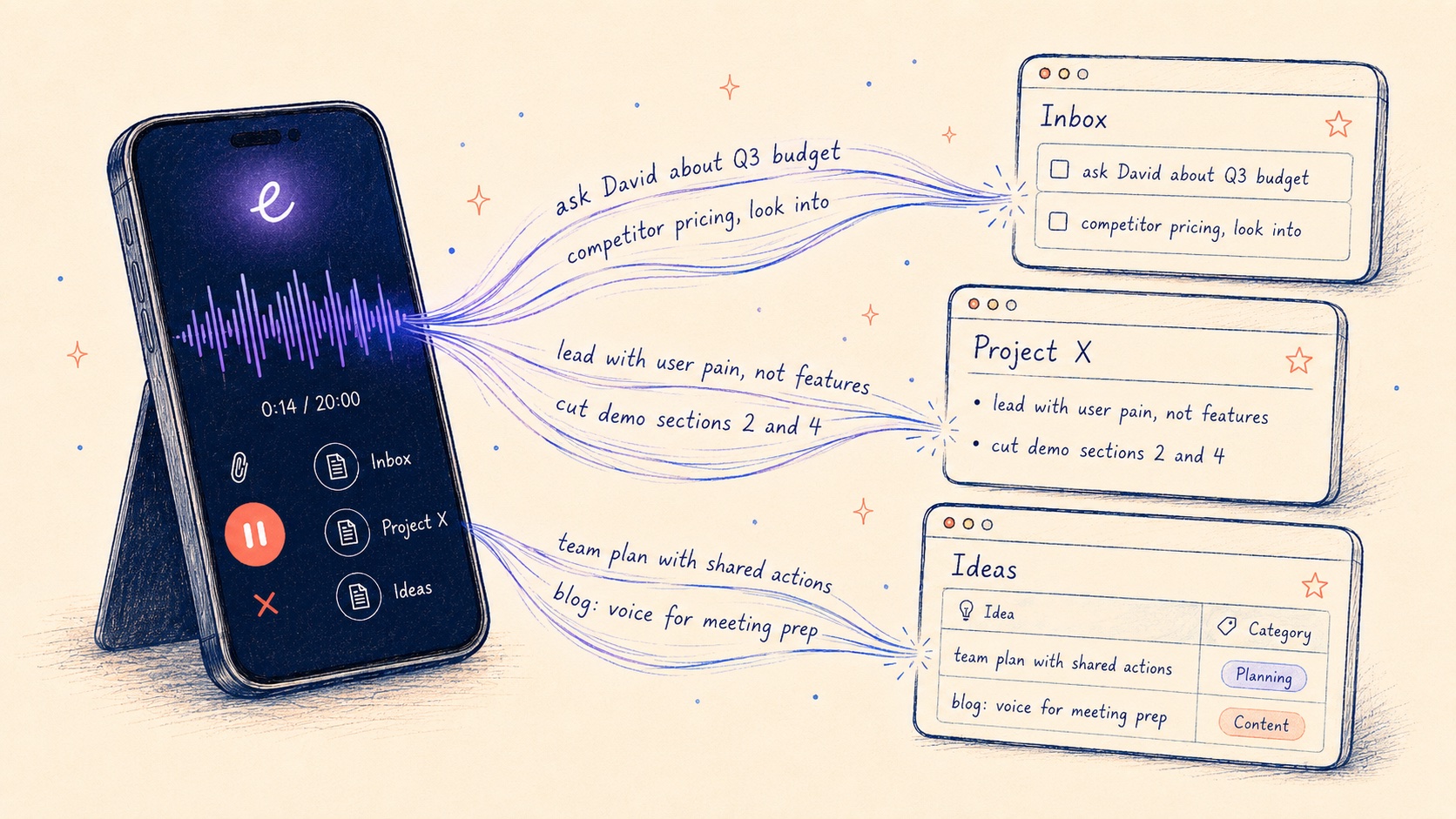
Epiphany is built for this specific gap. The product does one thing well: it takes your voice and lands it in Notion before the thought evaporates. From your iPhone or Apple Watch, capture is open Epiphany, speak, tap the action. The entry appears in Notion.
What Epiphany handles:
- Destination routing. Configured once in the Action setup: which Notion page, which database, which child-page path. From then on, every capture from that Action lands in the same place.
- Optional AI cleanup of the body text. If you write an AI prompt, the transcription gets formatted on the way in. Strip filler. Convert to bullets. Preserve voice verbatim. It's a formatting layer for the body text.
- Optional audio link. Include a link to the original recording alongside the text, in case the transcript misses nuance.
What Epiphany does NOT handle (and intentionally so):
- It does not pre-fill Notion property values like Status, Priority, Tag, or Type.
- It does not parse the speech into structured fields.
- It does not classify, tag, or auto-summarize the entry.
That cleanup is downstream. The pattern that works best in 2026: Epiphany lands the raw cleaned-up thought into a Notion inbox database; Notion AI (or a Notion-watching agent) reads new rows and handles the classification, applying tags, setting status, linking to related entries, generating summaries.
The split matters because it plays to each tool's strengths. Epiphany is the fastest possible "thought to Notion" loop. Notion AI is built specifically to understand and structure Notion content. Use both, and you get speed of capture plus structure-on-arrival, without forcing either tool to do something it isn't designed for.
What the capture loop looks like once the action is configured:
-
1Open EpiphanyWatch, lock-screen widget, or Action Button
-
2SpeakRecording starts automatically
-
3Tap the actionAction button doubles as 'done'. Tapping ends + routes.
-
4Lands in NotionPage or database row, with the AI-cleaned text in the body
That's it. Setup is one-time. Capture is repeatable. The action remembers which Notion workspace, which database or page, which AI cleanup rules. You don't.
Each action you create can route somewhere different. One lands in a "Captures" database. A second appends bullet points to a project page. A third creates a new sub-page under a parent page you specified. You decide which to use in the moment.
Five concrete ways Notion users actually use this
The point of voice-to-Notion isn't the technology; it's what becomes possible when capture friction disappears. These are the patterns we see most often across Epiphany users who route to Notion.
1. Daily captures into a single inbox
Action: append to a "Daily Captures" database, with the current date auto-populated.
This is the default starting workflow. Every voice capture lands in one place. Once a week (or once a day, if you're disciplined), you process the inbox into wherever the captures actually belong. The friction of "where does this go?" is deferred from the moment of capture to the moment of processing, which is a much better moment to decide because you have time to think.
2. Quick task capture into a Tasks database
Action: create a new row in a "Tasks" database.
Speak: "Remind Sarah we need the contract redlines by Thursday end of day, high priority." Epiphany's AI prompt (configured to "clean up the transcription, preserve voice") drops the cleaned text into the new row's body field. The row exists in your Tasks database; classification happens next.
The cleanup options for the row's properties (Priority = High, Due = Thursday, Assignee = Sarah, Status = Inbox):
- You handle it in your weekly review. Open the Tasks database on Monday, set the property values manually on the new rows. Fast if you batch.
- Notion AI handles it. Configure a Notion AI workflow on the Tasks database that reads the body field of new rows and proposes property values. You approve.
- A Notion-watching agent handles it. Your OpenClaw / NanoClaw / Hermes Agent watches the Notion database, processes new rows via the Notion API, and sets the properties.
The point of the article isn't to advocate for any specific cleanup path. It's that Epiphany ends the capture loop fast (idea → in Notion), and the next loop (in Notion → structured task) is its own decision, run by whichever tool you're already using for downstream Notion work.
3. Meeting prep notes routed to the meeting's Notion page
Action: append to a specific Notion page (the meeting note for a recurring call), with bullet formatting and a section header.
Five minutes before the meeting, walking to the coffee shop, you capture three discussion points. They land directly on the meeting page, formatted as bullets under a "Pre-meeting thoughts" section. By the time you sit down at your desk, the prep is already there.
4. Project-specific captures during deep work
Action: append to a project's "Working Notes" page.
You're heads-down on a writing or coding session. An adjacent idea about the same project surfaces, but you don't want to context-switch. Raise your wrist, open Epiphany, speak the idea, tap the project action (which is the "done" button). The capture appends to the project's working notes page. You return to flow immediately. When you wrap the session, the side-thought is waiting in the right place.
5. The Epiphany + Notion AI combo
This is the canonical 2026 pattern, and it's the one most worth highlighting.
Action: route to a Notion database where Notion AI is configured to summarize, tag, classify, or link incoming rows.
The flow: you speak a thought into Epiphany. Epiphany cleans the transcription and lands it in the Notion database. Notion AI sees the new row, reads the body, applies tags, sets a status, generates a summary, links related entries. By the time you look at Notion next, the entry is already classified.
This is the pattern that closes both halves of the loop without you doing either half manually. Epiphany handles "speed of capture from wherever you are." Notion AI handles "structure on arrival." Neither tool is doing work outside its strengths.
The common thread across all five: routing is configured once, used many times. The voice-to-Notion half is solved; downstream classification is its own pipeline that you can layer in when you want it.
How to set it up in five minutes
This is the one-time setup. After this you're just opening, speaking, tapping the action.
1. Install Epiphany. Get it on the App Store. Free to download. The annual plan includes a seven-day trial, and there's a monthly plan if you want to test for a single month.
2. Connect Notion. On Epiphany's recording screen, tap Create Action and pick Notion. The Notion login screen opens. Grant access to the specific pages and databases you want Epiphany to write to. (You can scope this narrowly. Epiphany can't see workspace content you don't explicitly grant.) Tap Continue once you've granted access.
3. Pick a destination. Inside the action setup, choose where captures should land:
- A specific page: appends to the bottom of that page, or to a section you specify.
- A database row: creates a new row each capture. The cleaned-up transcript goes into the body / main content field. Property values are not pre-filled by Epiphany; downstream classification (manual triage, Notion AI, or a Notion-watching agent) handles those.
- A child page under a parent: creates a new sub-page each capture, useful for journal or daily-log workflows.
4. (Optional) Write the AI prompt. This is what Epiphany does to your transcribed words on the way to Notion. A useful starting prompt: "Clean up the transcription, remove filler words, preserve voice and structure, format as a single paragraph or bullet list as appropriate." The AI prompt is a formatting layer for the body text. It doesn't set Notion property values; if you want properties set automatically, do that downstream with Notion AI or your own workflow.
5. Test the loop. Open Epiphany, speak a sentence, tap the action (the action button doubles as the "done" button; tapping it ends recording and routes to your Notion destination). Open Notion. The entry appears in the location you configured, with the body formatted by the AI prompt.
If the entry doesn't appear, the most common issue is the Notion permission scope. Open Notion's connection settings and confirm Epiphany has access to the specific page or database. Once permissions are set, the loop works every time.
Faster ways to open Epiphany
The hardest moments for capture are the moments you don't want to fumble with your phone: walking, driving, between meetings, talking to someone, falling asleep. Three entry points reduce the friction of opening Epiphany. The Apple Watch is the only one that captures without touching your phone at all; the other two still require Face ID or your passcode if the phone is locked, but each skips the home-screen-and-app-drawer detour.
Apple Watch
Open Epiphany on the Watch, speak, tap your Notion action. The action button is the "done" button: tapping it ends the recording and routes the capture to Notion via the action's configuration. The capture syncs through your phone to Notion in the process; from your wrist, it's open + speak + tap. You don't touch your phone. You don't see notifications. You don't fall into a feed. The idea that would have evaporated lands in your Notion workspace.
For Notion users with a deeply structured workspace, the Apple Watch combo is particularly useful because each action handles its own routing. You're not picking a database on a tiny screen; you tap the action you want and the destination is already decided.
Lock-screen widget
Add the Epiphany widget to your iPhone lock screen. Tapping the widget triggers Face ID (or your passcode if Face ID is off) and opens Epiphany directly. You skip the home screen and the app drawer.
This is the right entry point for moments when your phone is already in your hand but you don't want to take the detour through the home screen to find the app.
Action Button (iPhone 15 Pro and later)
Configure the Action Button to launch Epiphany. From any context, long-press the Action Button; Face ID authenticates and Epiphany opens directly. The capture loop is the shortest available path on iOS for the moments when seconds matter. (On an already-unlocked phone it's instant.)
All three are convenience entry points, not requirements. Epiphany works from the home screen too. But if voice capture into Notion is going to be a regular part of your workflow, at least one of these makes it reflexive.
Designing your Notion workspace for voice capture
A short note on workspace design, because the structure of your Notion workspace affects how useful voice capture is.
Two patterns work well:
The "single inbox" workspace. All voice captures land in one database. Properties on that database: date, source, tag, processed (checkbox). You process the inbox once a day or once a week. Captures get tagged, moved into the right project page, or deleted. The single inbox is low-friction; the cost is the weekly processing step.
The "destination-per-context" workspace. You build multiple Epiphany actions, each routing to the right place: tasks to the Tasks database, project ideas to the project's page, meeting prep to the meeting's page, journal entries to the daily-notes database. The cost is that you have to remember which action to use in the moment. The benefit is that captures land in their final home with no processing step.
For most Notion users, the "single inbox" model is the right starting point. As you build muscle memory for what types of captures you do most, layer in destination-per-context actions for your high-frequency patterns. The model scales gracefully because Epiphany doesn't care how many actions you create.
What ends up in Notion
The entry that lands is a normal Notion page or database row. Nothing proprietary, nothing escaped from your control. If your action targeted a database, you get a new row with the cleaned-up transcript in the body field. Property values are blank by default; downstream classification (manual triage, Notion AI, or an agent watching the database) fills them in. If your action targeted a page, you get appended content on that page.
A typical Notion-database capture from a five-second voice trigger looks like this in your workspace, right after Epiphany drops it in:
Q3 product brief framing
- Created
- May 27, 2026
- Tag
- (empty, classified downstream)
- Status
- (empty, classified downstream)
That's the full entry, in Notion, as Epiphany dropped it. Property values like Tag, Status, or Priority are not pre-filled by Epiphany. They're either left blank for you to triage later, or processed automatically by Notion AI or a Notion-watching agent in the moments after the row appears.
This is the difference between a voice notes app and a voice workflow tool. A voice notes app would give you a transcript in a separate app, leaving you to copy-paste into Notion. Epiphany finishes the capture loop: the cleaned-up thought is in Notion within seconds, ready for whatever downstream process you've set up (or to be reviewed manually, if you'd rather classify by hand).
When voice-to-Notion isn't the right tool
A few honest disqualifiers.
- You need fully local, on-device transcription. Epiphany transcribes in the cloud. If your captures are sensitive enough to require air-gapped processing, look at offline Whisper-based tools instead.
- You're Android-first. Epiphany is iOS-only today.
- You want a conversational AI assistant in your Notion workflow. Epiphany isn't that. Capture lands in Notion and the loop ends. If you want a back-and-forth dialog about what you just said, that's a different category.
- You don't actually use Notion that much. Voice-to-Notion is useful in proportion to how central Notion is to your work. If your work primarily lives in Slack, Todoist, email, or Obsidian, configure actions to route there instead, or in addition.
For Notion users who already have a structured workspace and find themselves losing ideas because Notion mobile capture is too slow, the voice-to-action approach closes the gap. Five-minute setup, one-tap capture from there.
The thing that changes once it's set up isn't the speed of any individual capture. It's that you stop deciding whether to capture. The friction was the decision-maker; remove the friction, and capture becomes default.
FAQ
Try the workflow
Epiphany is free to try on iPhone. The five-minute setup is the same for every integration. After that, your tools get fed by voice instead of by typing.
Related articles
The Fastest Way to Capture Voice Notes into Obsidian on iPhone (and Apple Watch) in 2026
Obsidian Mobile capture is brutal. Here's the fastest voice-first workflow to get notes into your vault on iPhone and Apple Watch.

The Popcorn Brain Problem: Why Your Best Ideas Keep Popping Out Before You Can Catch Them
If you lose 30+ ideas a day before you can write them down, you have a popcorn brain. Here's the voice-first capture system that actually keeps up.