Best Voice Notes App for Apple Watch in 2026: Capture Without Your Phone (and Route Anywhere)
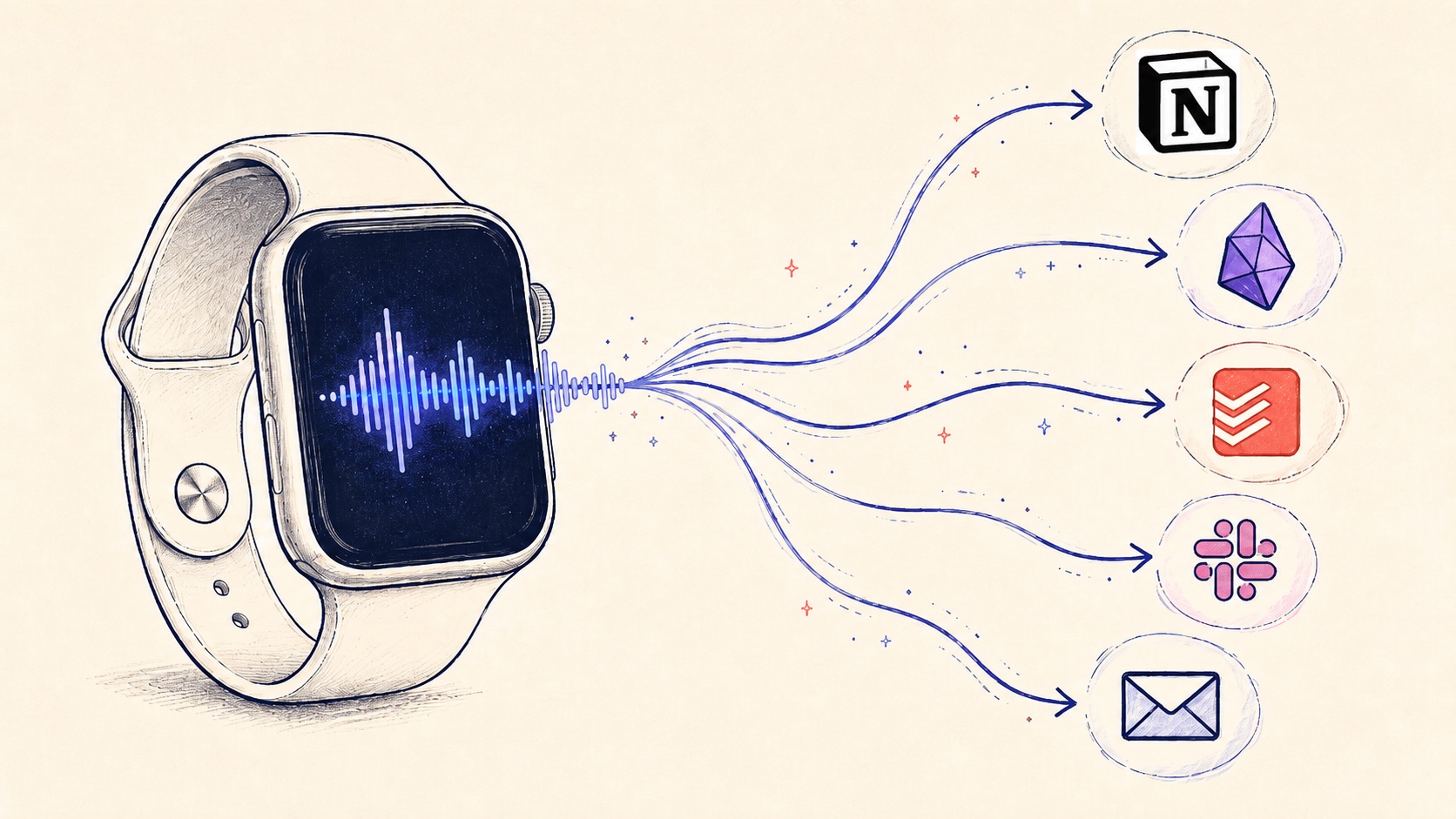
The strongest moments to capture an idea are the moments you don't want to look at your phone. Walking. Driving. Between meetings. Talking to someone. Cooking dinner. Falling asleep. Halfway through a workout. The phone is in your pocket, in your bag, on the counter, on the nightstand. By the time you reach for it, the idea is gone.
The Apple Watch sits at the perfect intersection of "always available" and "no scroll trap." You're already wearing it. You can speak into it without unlocking anything, without seeing notifications, without falling into a feed. For voice capture, it should be obvious. For most users in 2026, it still isn't, because the watch-side software hasn't fully caught up to what the hardware can do.
This article is about the right Apple Watch voice notes setup for 2026, why the popular options stop short, and how to capture from your wrist directly into your real tools (Notion, Obsidian, Todoist, Slack, email, an AI agent) without ever pulling your phone out. Setup takes about five minutes. After that, capture is one tap, on your wrist.
Why Apple Watch is the most undervalued capture device
Most productivity content writes the Apple Watch off as a passive notification screen. That's because most productivity content treats the phone as the default capture surface. The Watch is treated as "phone, lite."
That framing misses the point. The Watch isn't a worse phone; it's a different category of input device. Specifically, it has three properties no other device matches:
- Zero friction to access. It's already on your wrist. There's no "pull out, unlock, find the app" sequence.
- No scroll trap. Speaking into the Watch doesn't open Instagram, doesn't show Slack mentions, doesn't display a Mail badge. The Watch is the rare interface that does exactly one thing at a time.
- Available in moments the phone isn't. Workouts. Wet hands in the kitchen. Showering with a waterproof Watch on. Standing in line. The phone is "available" most of the day; the Watch is available all of the day.
The mismatch is software, not hardware. The dedicated voice-notes apps for the Watch (Just Press Record, Whisper Memos, Voice Memos) are good at the recording half of the loop, but they leave the routing half on you. The note exists, in their app, waiting for you to come back and process it. Most users never do.
That's the gap. The Watch is the best capture device in the room, and the popular Watch apps stop one step short of solving the actual problem: getting the idea into the tool where the thinking happens.
The three Apple Watch voice-capture patterns people settle into
If you've tried voice capture from your wrist, you've probably landed in one of these.
Standalone Watch recorder
Just Press Record, Whisper Memos, or Voice Memos. Records well. Recording lives in the recorder app, separate from where your work actually happens.
Siri dictation to Apple apps
Native Siri routes to Reminders, Notes, Messages, Calendar. Useful for Apple-only workflows. Doesn't work offline. Pause for even a second mid-thought and Siri cuts you off before you finish.
DIY Shortcut on the Watch
Custom Apple Shortcut on the Watch triggers dictation, pipes via webhook or API to your tool. Breaks on watchOS updates, fragile destination auth, debugging on a tiny screen. And the moment your Watch loses network access, the whole chain dies.
1. Standalone voice recorder app on the Watch
The default pick for "Apple Watch voice notes" today. You open Just Press Record, Whisper Memos, or Voice Memos on the Watch, hit record, talk. The recording syncs to your phone for transcription.
This works as a recorder. It fails as a capture system. The voice memo lives in the recorder app, in its own filing cabinet, separate from wherever your actual work lives. You don't open Just Press Record when you're sitting down to plan a project; you open Notion or Obsidian. The recording never makes the trip. Within a week you have eight unprocessed memos and the original ideas are already half-forgotten.
The recorder apps tell you this is your fault for not processing the inbox. It isn't your fault. It's the architecture: capture and use happen in different apps, and the bridge between them is "human discipline." That bridge doesn't scale.
2. Siri dictation into Apple Reminders, Notes, or Messages
The native option. "Hey Siri, remind me to follow up with Sarah tomorrow." Siri parses it, drops a reminder into Apple Reminders. Or "Hey Siri, add to my Notes: idea for Q3 brief." Or "Hey Siri, message Mike: I'll be five minutes late."
Two practical problems hit this pattern fast:
- Siri needs the network. No connection, no capture. Walking through a tunnel, on a flight, in a building with bad reception. The moment Siri can't reach Apple's servers, the dictation fails. You lose the idea precisely in the situations where you most need to catch it.
- Pause for a beat and you're done. Siri stops listening the moment you stop talking. Real thinking has pauses in it. You hesitate on a word, you reach for a name, you take a breath. Siri reads that as "you're finished" and either submits whatever fragment you got out, or asks you to start over. Either way, the full thought doesn't make it.
Add to that the ceiling: Siri only routes to Apple's own apps (Reminders, Notes, Messages, Calendar). For knowledge workers running on Notion, Obsidian, Todoist, Things, Slack, ClickUp, Asana, or any other modern tool, the native ceiling stops you at the door.
If your entire knowledge base lives in Apple Reminders and Apple Notes, Siri dictation is fine in good network conditions. For everyone else, it's a partial-credit solution at best.
3. DIY Shortcut on Apple Watch piping to a third-party app
The committed power-user setup. A custom Apple Shortcut on the Watch triggers dictation, pipes the transcript through a webhook or the destination app's API, lands the text in your tool.
This is the most respected solution because it requires the most maintenance. It also breaks the most. watchOS updates change Shortcut behavior. The destination API rotates auth. The Shortcut you wrote eighteen months ago against a stable schema starts silently failing. And the Watch UI for triggering and managing Shortcuts is still rough enough that "tap the Shortcut on your wrist" is two more taps than it should be.
The bigger structural problem is the network dependency. Every step in the chain (dictation, transcription, webhook delivery, destination API call) requires live connectivity. The moment your Watch can't reach the network (bad signal, dead Wi-Fi, phone left at home, low-coverage area), the whole pipeline collapses mid-capture and you're left holding nothing.
The DIY approach gets you the routing the recorder apps don't have, but it inherits the fragility of any duct-taped multi-app pipeline that assumes a clean network at every step. When it works, it works. When it breaks (and it breaks more often than the maintenance schedule suggests), debugging on a tiny Watch screen is its own punishment.
Across these three patterns, the common shape is: the Watch captures, the destination is somewhere else, and the bridge is fragile. The voice-to-action approach changes the bridge.
The voice-to-action approach on Apple Watch
Epiphany is a voice workflow tool. Not a voice notes app. The distinction matters here because the goal isn't to give you better recordings on your wrist. The goal is to land the captured idea in your actual tool (Notion, Obsidian, Todoist, Slack, email, a webhook to your AI agent) without the human bridge in the middle.
The Watch app is the same app as the iPhone app, with the same Actions. An Action is a one-time configuration of (destination + optional AI prompt + optional audio link). Once you've set up your Actions on iPhone, they show up on the Watch automatically. From your wrist, every Action you configured is one tap away.
The capture flow is identical to the iPhone flow:
- Open Epiphany on the Watch. Two ways: tap the Epiphany complication on your watch face, or activate Siri ("Hey Siri") and say "Epiphany" to open the app.
- Speak. Recording starts when the app opens.
- Tap the Action you want. The Action button is the "done" button. Tapping it ends the recording AND routes the capture to that Action's configured destination.
That last step is the part the other Watch options don't have. You're not picking an Action first and then speaking. You speak, then tap the Action, and the Action serves as both the destination decision and the end-of-recording signal in a single gesture.
The capture loop on the Watch in four steps:
-
1Raise wrist + openTap the complication, or "Hey Siri, Epiphany"
-
2SpeakGet the thought out while the app is active
-
3Tap the ActionThe Action IS the 'done' button. Tapping ends + routes.
-
4Lands in your toolNotion, Obsidian, Todoist, Slack, email, webhook
Five things Apple Watch users actually do with this
The point of Watch-side voice capture isn't the technology. It's that capture finally happens in the moments it should. These are the patterns we see most often across Epiphany users on the Watch.
1. Voice into Obsidian or Notion (knowledge work)
Action: route the captured note into a specific Obsidian vault note or Notion page / database row.
You're walking between buildings, an idea about a project surfaces. Open Epiphany on the wrist, speak, tap the project's Action. The note lands in the project's Obsidian Daily Note or its Notion working-notes page. By the time you sit at your desk, the thought is waiting in the right place. You didn't break stride, you didn't pull out your phone, you didn't lose the idea to a context switch.
2. Voice into Todoist, Things, ClickUp, or Asana (task management)
Action: create a task in your task system, with whichever destination-specific defaults that tool exposes (typically the project or list the task should land in).
The thought "I need to send Sarah the contract redlines by Thursday" hits while you're cooking. Raise the wrist, speak the task, tap the Tasks Action. The task lands in your Todoist Inbox (or whatever project the Action targets), ready for triage at your next planning moment. No phone, no app-switching, no losing it because you couldn't reach the phone in time.
3. Voice into Slack (team communication)
Action: post to a specific Slack channel or DM, with the @-mention configured in the Action setup.
You're walking back from a meeting and want to update the team on a decision. Speak into the Watch, tap the Slack Action you've configured for #team-updates. The message posts to Slack, the team sees the update in real time, and you walk to your next meeting instead of stopping to type.
This is also the killer pattern for handing things off to an AI agent monitoring a Slack channel. The Action is the same; the channel is one your agent watches; the agent picks up the post and acts.
4. Voice into your email inbox (note-to-self method)
Action: send the cleaned-up capture as an email to yourself.
For users whose inbox is the central nervous system of their work, sending captures to your own email is the highest-reliability pattern there is. You'll see it. You won't ignore it. You'll triage it with your other email.
The Watch version of this is the cleanest "note to self" implementation in any setup, because the email lands in your inbox without ever opening Mail on the Watch, your phone, or your desktop. By the time you check email, the note is just there, waiting in the same queue as the rest of your work.
5. Voice into an AI agent (the delegation pattern)
Action: route to a webhook your agent listens on, or to a Slack channel / Notion database your agent monitors.
The forward-bet pattern. You walk past a problem, articulate a research or drafting task into your Watch, and the agent picks it up from the destination. By the time you check the agent's output (an hour, a day later), the work is done. The Watch version of this is where it becomes reflexive, because the friction of "type a structured brief into a chat window" disappears entirely.
How to set it up in five minutes
This assumes you've already installed Epiphany on your iPhone. The Watch app is part of the iPhone app; setup happens on the phone.
1. Install Epiphany on iPhone. Get it on the App Store. Free to download with a seven-day trial on the annual plan.
2. Add Epiphany to your Apple Watch. Open the Watch app on your iPhone (the one that manages your Watch, not Epiphany itself). Scroll to "Available Apps" (or "Installed on Apple Watch" depending on watchOS version), find Epiphany, and tap install. The Watch downloads the companion app from your phone. (You only do this once.)
3. Configure at least one Action on iPhone. Tap Create Action in Epiphany, pick the destination tool (Notion, Obsidian, Todoist, Slack, email, etc.), and configure the destination-specific details (which Notion database, which Slack channel, which user to @-mention, what the email subject line is, what the AI prompt should do).
The Actions you configure on iPhone show up on the Watch automatically. You don't have to do separate setup for the Watch.
4. Add Epiphany as a complication on the Watch. Long-press the watch face → Edit → add Epiphany as a complication on whichever face you use most. This makes opening Epiphany on the Watch a one-tap operation. (Alternatively, you can open Epiphany hands-free by activating Siri and saying "Epiphany.")
5. Test the loop on your wrist. Raise your wrist, tap the Epiphany complication, speak a sentence, tap the Action you want. The Action is the "done" button: tapping it ends the recording and routes to the destination.
Open your destination tool (Notion, Slack, Obsidian, your email inbox). The capture should be there.
If it isn't, the most common issue is the destination's permission scope. Check that the destination app or service has authorized Epiphany. Once permissions are set, the loop works every time.
The Apple-Watch-plus-Epiphany combo as the dumb-phone-alternative iPhone setup
A note for the digital minimalists in the room. The dumb phone movement has been growing for a few years now. Light Phone, Punkt, Mudita, the Boring Phone. The argument: phones are designed for distraction, and you'd think better, live better, work better without the dopamine slot machine in your pocket.
The argument is half right. The phone's distractions are real. But trading away the phone entirely is throwing the baby out with the bathwater, because there's a class of phone uses that aren't distractions. Capture is one of them. Music is another. Maps is another. Wallet is another. Camera is another. Health tracking is another. The list of "uses I don't want to give up" is long enough that the dumb phone is a step back for most knowledge workers, not a step forward.
The Apple-Watch-plus-Epiphany combo is closer to the dumb-phone position than most setups, and it doesn't ask you to give up any of the iPhone use cases that actually matter.
The pattern looks like this:
- Your iPhone lives on a counter, in a bag, in a different room. Not in your pocket.
- You wear your Apple Watch.
- When an idea hits, you speak into the Watch. The capture lands in your real tool (Notion, Obsidian, Todoist, Slack, email).
- You never unlock your phone. You don't see notifications. The scroll trap doesn't activate.
- You go back to whatever you were doing before the idea hit.
This is a different setup from "use your phone less." It's "use your phone for the things it's good at, and capture-while-moving with your wrist."
The thing it changes most isn't the volume of captures (though that goes up because the friction is lower). It's that the next two hours of your evening don't disappear into Instagram. You captured the thing, you went back to dinner, you didn't accidentally reactivate your phone-checking habit by reaching for the phone in the first place.
If you've been eyeing a Light Phone but can't quite cut the cord because you actually use your iPhone for things that matter (your knowledge base, your task system, your project communication), the Apple Watch is the alternative answer. Voice capture is the killer use case for it, and it's the use case dumb-phone proponents are mostly trying to recreate when they describe their setups.
The dumb-phone alternative isn't a dumb phone. It's a phone you use with intention, and a wrist you use for the rest.
The other three entry points (for when you don't have your Watch on)
Apple Watch is the strongest entry point for hands-free capture, but it's not the only one. Epiphany has four entry points total. None of them are required; each one is a convenience layer for a different moment.
- App icon on the home screen. The baseline. Open Epiphany the normal way.
- Lock-screen widget. Add the Epiphany widget to your iPhone lock screen. One tap opens the app from the lock screen, without going through the home screen. Useful when your phone is already out but you don't want to take the detour.
- Action Button (iPhone 15 Pro and later). Configure the Action Button to launch Epiphany. Long-press the Action Button from any context, Epiphany opens directly. The shortest path to capture on iOS for when seconds matter.
- Apple Watch app. As above. One tap from a complication, or hands-free via "Hey Siri, Epiphany."
Most Epiphany users settle into using two of the four. Watch and Action Button is a common pairing for iPhone 15 Pro owners. Watch and lock-screen widget is common for older iPhones. Whatever you pick, the actions you configured work identically across entry points; you're just choosing which surface is fastest in the moment.
When Apple Watch voice capture isn't the right tool
Honest disqualifiers.
- You don't have an Apple Watch. Obvious, but worth saying: Epiphany works fine on iPhone alone. The Watch is a force multiplier, not a requirement.
- You're Android-first. Epiphany is iOS / watchOS only today.
- You need fully local, on-device transcription. Epiphany transcribes in the cloud. If you need air-gapped capture, look at offline Whisper-based tools.
- You're committed to Just Press Record, Whisper Memos, or another standalone recorder. Those are legitimate tools for users whose workflow is "audio archive plus manual transcription." If you want the recording to be the deliverable (not a thought routed to your work tools), the dedicated recorders are simpler.
- You don't have a destination yet. If your work isn't organized into Notion, Obsidian, Todoist, Slack, email, or another tool that captures can route to, the routing benefit doesn't apply. Build the destination first, then add voice on top.
For everyone else (most knowledge workers running on modern tools who already wear an Apple Watch), the Watch-plus-Epiphany combo is the lowest-friction capture setup available in 2026. Five-minute setup on the phone, one-tap-on-the-wrist from there.
The thing that changes after a week of this isn't any single capture. It's that you stop bracing for losing ideas, because every idea you've had over the past week made it into the right tool. The mental cost of "I should write that down before I forget" goes away. Your wrist caught it.
FAQ
Try the workflow
Epiphany is free to try on iPhone. The five-minute setup is the same for every integration. After that, your tools get fed by voice instead of by typing.
Related articles
The Fastest Way to Capture Voice Notes into Obsidian on iPhone (and Apple Watch) in 2026
Obsidian Mobile capture is brutal. Here's the fastest voice-first workflow to get notes into your vault on iPhone and Apple Watch.
Voice Notes to Notion: The Fastest iPhone Workflow in 2026 (Including Database Routing)
Notion mobile capture is slow. Here's the voice-first workflow for sending captured ideas, tasks, and meeting notes directly into Notion pages and databases from iPhone or Apple Watch.
Voice-to-AI-Agent: How to Delegate to OpenClaw, NanoClaw, and Hermes Agent by Voice in 2026
Modern AI agents listen to a Slack channel or an email inbox. Here's the voice-first delegation setup for OpenClaw, NanoClaw, Hermes Agent, and other 2026 agent frameworks. Five-minute setup, one-tap capture from your iPhone or Apple Watch.